
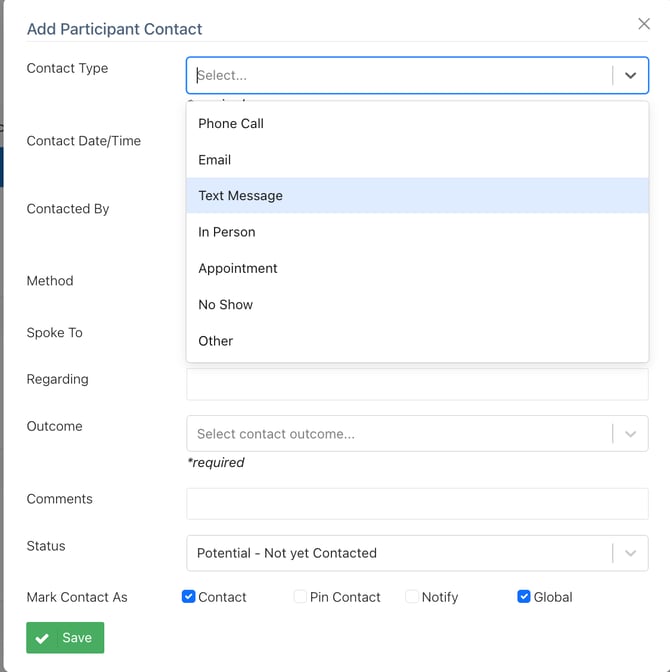
Ripple includes seven default contact types. Additional contact types can be created at the study level only.
- Phone Call
- Text Message
- In Person
- Appointment
- No Show
- Other
To add a new Contact Type:
-
Open the Profile Card of any participant in your study.
-
Go to the Contact tab.
-
Click “Add Contact.”
-
In the top field for Contact Type, type the new label you’d like to create.
-
Select “Create [New Contact Type Name].”
-
Complete the remaining contact details and click Save Contact.
-
To verify, open another participant’s profile and add a new contact — the newly created type will now appear in the Contact Type drop-down list.
Once saved, the new contact type becomes available for all participants within that study.
To Delete a Contact Type
A Contact Type can only be deleted if it is not in use by any participant within the study.
To delete a Contact Type:
-
Review all participant profiles within the study and remove any contacts that are using the Contact Type you want to delete.
-
Once the Contact Type is no longer assigned to any participant records, it will automatically be removed from the Contact Type drop-down list for that study.
Important Note:
Before deleting any contacts from participant profiles, please check with your Site Admin.
Removing a contact from a participant’s Profile Card is permanent — once deleted, the contact and its associated details cannot be recovered.