
This article outlines the complete set of steps required to ensure all study data and participant data have been successfully downloaded prior to a lab discontinuing its subscription with Ripple Science. It is intended to guide Site Admins through verifying permissions, confirming access to all studies, and completing comprehensive data exports so that no data is missed before the subscription end date. Following this process helps support data continuity, institutional requirements, and a smooth off boarding experience.
Step 1: Permission and access requirements
To successfully export data in Ripple Science, users must have the correct site-level permissions, study-level permissions, and be assigned to all studies within the lab. This ensures secure, complete, and compliant data exports—particularly important during lab offboarding or site decommissioning.
Important: Ripple does not provide a single “export all studies” action. Each study must be exported individually by a user with access to that study.
Site-level permissions
The user performing the export (typically a Site Admin) must have:
- Site Permission: Site Admin & Registry Access
This provides full access to manage studies and perform exports across the site.
Step 2: Verifying access to all studies
Study-level permissions
In addition to site permissions, the user must be explicitly assigned to each study included in the export.
- Navigate to Site Admin → Users.
- Locate and open the Site Admin’s user profile.
- In the Studies section, review all studies associated with the site.
- For each study—including both active and archived studies:
- Use the drop-down menu to the right of the study name to assign the user.
- Set the Study Permission to Admin.
- Confirm the Site Admin is assigned to all active and archived studies.
- If any studies are missing, update the Site Admin’s access and save.
- Save the changes. Save button is located at the bottom of the list of studies.
Important: Every study listed must have the Study Permission set to Admin. If a study permission is set below Admin or the user is not assigned to the study, data from that study will not be included in exports. If the Site Admin does not have access to a study, they will be unable to view or export that study’s data. This is the most common reason data is unintentionally missed during lab offboarding.
Step 3: Confirming the complete study list
To ensure no studies are overlooked:
- Navigate to Site Admin → Studies.
- Review the full list of studies, including:
- Active studies
- Archived studies
- Confirm the list reflects all studies expected to exist in the lab.
- If additional studies are identified, return to Site Admin → Users and update the Site Admin’s study access accordingly.
The finalized study list should be used as a checklist when exporting data to ensure all studies are included prior to site decommissioning.
Step 4: Export Data for Each Study
Study exports in Ripple are completed one study at a time. Repeat the steps below for each study in the lab.
To export a study:
- Navigate to Site Admin
- Click the Export tab.
- Locate the Select Study and Timezone-Select an area to download the data from.
- Click the drop-down and choose a study name
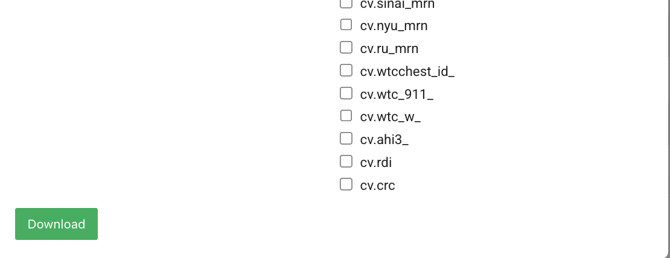
- Check the Select All box to download all Study data.
- Export the Study
- Click the Download button to download each study.
- Click the Download button to download each study.
- Save the Export File
- Store the file in a secure location.
- The file will save with the study name and export date.
- Repeat these steps for every study before proceeding.
Save the Export File Securely
After completing the export, store the file in a secure, access-controlled location approved by your organization.
- Be aware of the type of data included in the export. Files may contain personally identifiable information (PII) and/or protected health information (PHI).
- Handle and store the file in accordance with your organization’s internal policies and procedures for PII/PHI, including any requirements for encryption, access restrictions, retention, and secure sharing.
Following these practices helps ensure data security, regulatory compliance, and appropriate stewardship of participant information.
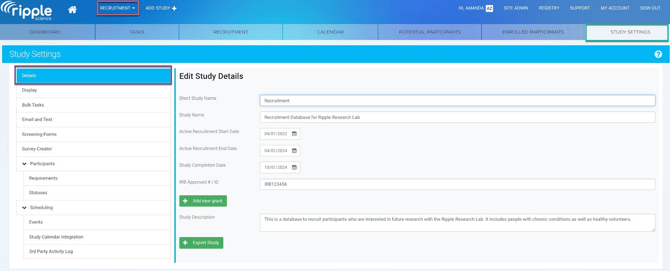
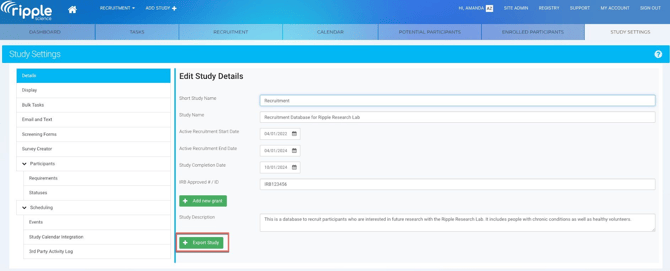
Step 5: Confirm All Studies Have Been Exported
Once exports are complete:
- Cross-check downloaded files against your study list.
- Confirm there is one export file for every study.
- Verify file integrity (files open successfully and contain expected data).
Step 6: Exporting Data from the Registry
This section outlines the steps required to export participant data from the Registry in Ripple Science. Following these steps ensures a complete and accurate export based on your selected filters and permissions.
Before exporting, confirm that:
-
Your Site Permission is set to Site Admin & Registry Access
-
You are assigned to all relevant studies (active and archived) with Study Permission set to Admin
If any of these requirements are not met, data may be missing from the export.
Steps to export from the Registry
-
Navigate to the Registry
-
Log in to Ripple.
-
From the main navigation, select Registry.
-
-
Filters Applied?
-
Confirm that filters reflect the exact data set you intend to export.
-
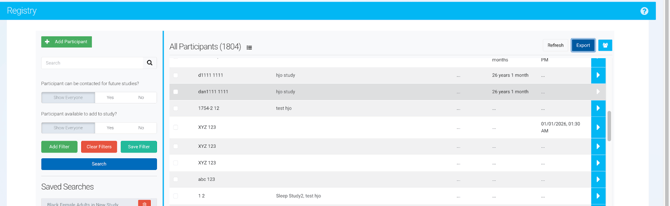
If exporting all data, ensure no unintended filters are applied by clicking the red “Clear Filters”.
-
-
Initiate the export
-
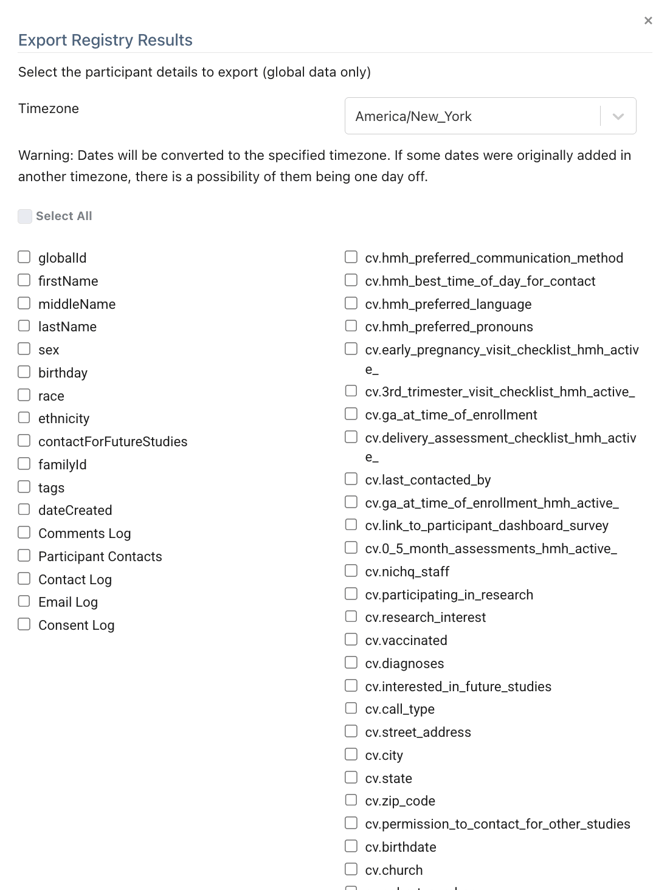
Click the Export button in the Registry in the upper right.
-
Select All so that all data will be exported.
-
After the export
-
Verify that participant data from all expected studies is present.
-
Confirm participant counts align with expectations based on Registry filters.
-
Store the file securely in accordance with your organization’s policies, as this export includes PII and/or PHI.
TIP: If data from a study is missing, first confirm that you are assigned to that study with Study Permission = Admin. This is the most common cause of incomplete Registry exports.
Step 7: Notify Ripple Science Once the Process Is Complete
Only after all of the following have been completed:
- Data exports for every study have been completed and verified
- All registry data has been exported.
- All data should be exported prior to your Ripple subscription end date to ensure uninterrupted access to participant and study data. Once a subscription has ended, access to the site and its data may be limited or unavailable, which could prevent successful exports.
Site Admin is to notify the Ripple Science team that the export process is complete. Once Ripple Science has received confirmation, the lab site will then be decommissioned.