
Previewing your email template helps ensure it is visually appealing, functional, and ready for participants. Benefits of previewing include:
- Verifying the design and layout.
- Testing buttons and hyperlinks.
- Checking how it appears on different devices.
How to Preview:
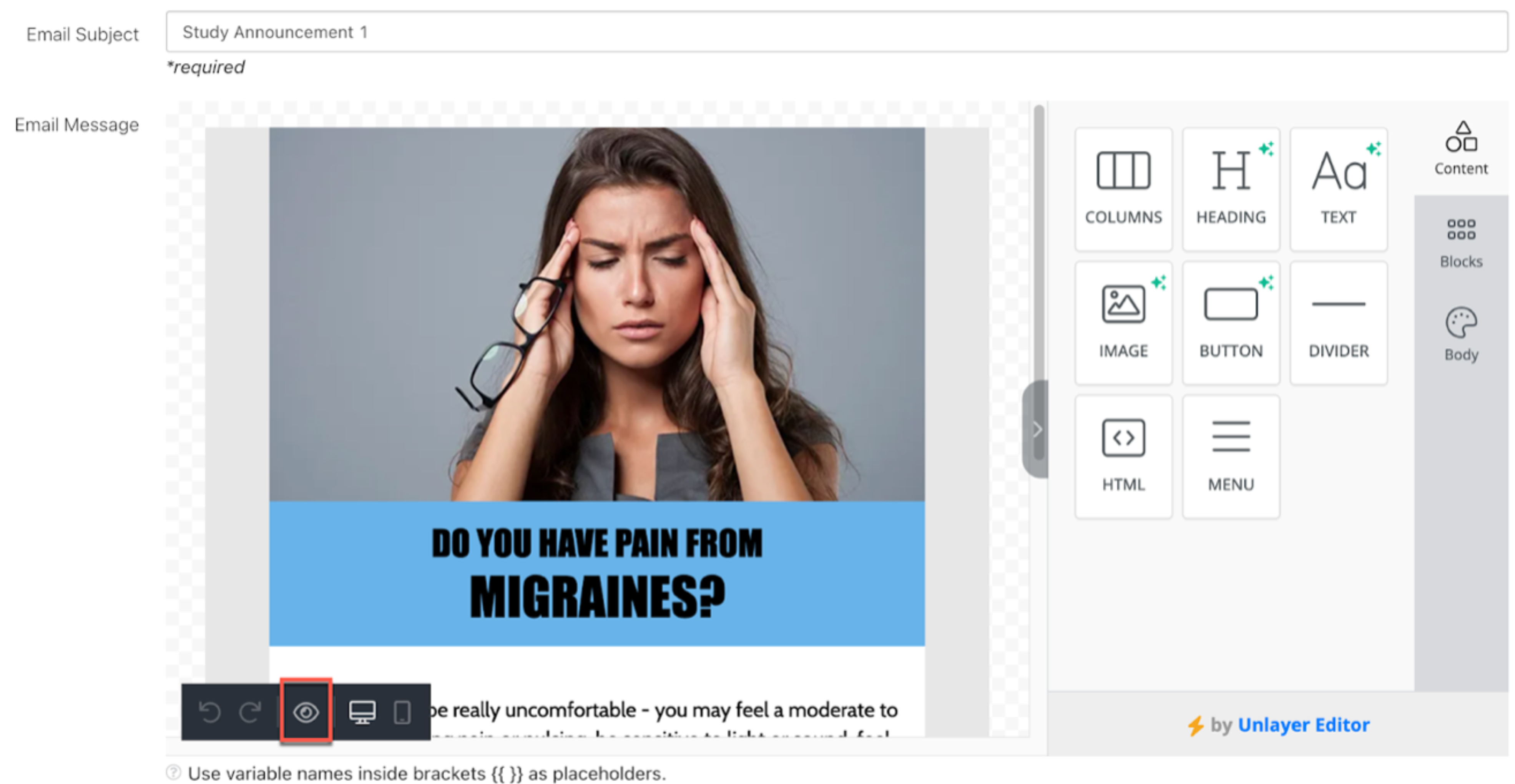
- Click the eye icon (red) at the bottom left corner of the email message.
Email Preview Options
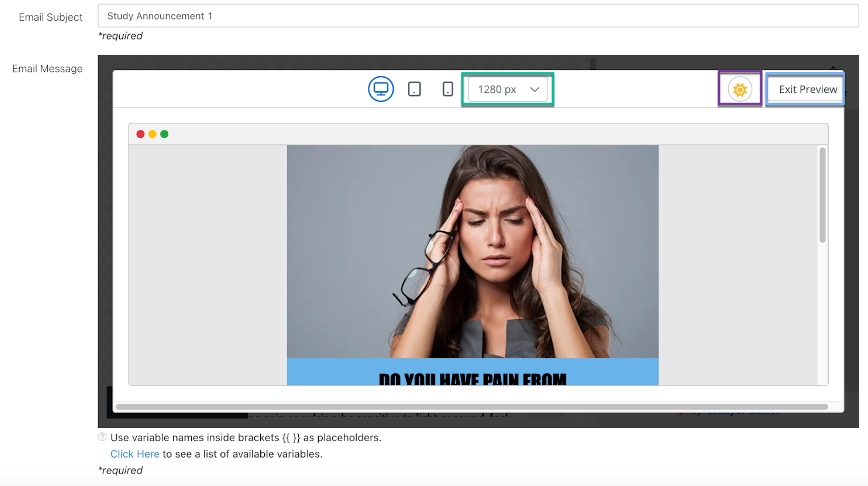
- Default View: The preview initially displays how the email looks on a desktop.
- Device Selection: Use the dropdown menu (green) to preview the email on different devices and screen sizes.
- Dark Mode: The preview bar includes an option (purple) to see how the email appears in dark mode, ensuring readability for users with this setting.
- Exit Preview: Click the "Exit Preview" button (blue) to return to the Email Editor for further edits or to save and close the template.
Email Preview
Ripple has introduced an Email Preview feature that allows Site and Study Admins to see exactly how messages will appear to participants when building an email template.
When creating an email template that includes merge tags or URL parameters, you can now preview the complete message layout — including dynamic merge tag data, text, formatting, and images — to confirm that all participant-specific information is pulled correctly from the Participant Profile Card and displayed as intended.
How to Use the Email Preview
-
Build or modify the email template as usual within Ripple. You can review how to build an email template here.
-
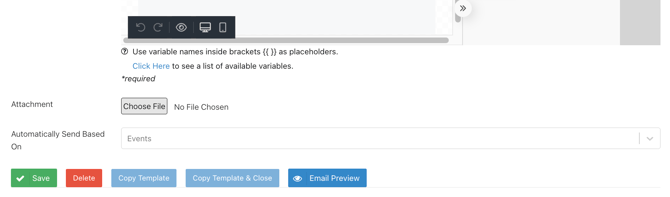
Once your email template is complete, click the Email Preview button at the bottom of the Email Template Builder to open a preview of the message.
-
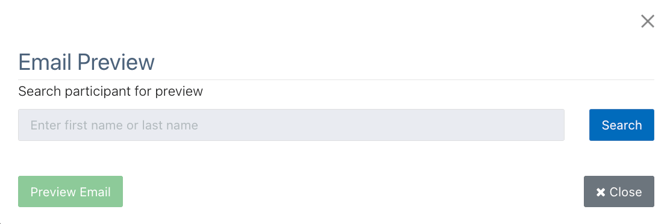
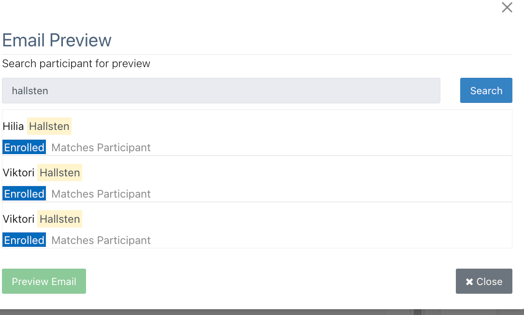
In the preview window, begin typing a participant’s first or last name in the search box.
-
A list of matching participants will appear — select a participant to generate the preview.
-
The preview will display the email dynamically, allowing you to verify that all merge tags and URL parameters (such as participant name, date, or study details) automatically populate with each participant’s information correctly.