
The Search Bar on the Potential and Enrolled Participants pages helps users locate participants efficiently.
NOTE: By default, the search bar will search the Participant’s First Name, Participant’s Last Name, Custom ID, Family ID, Global ID, and Tags fields.
Search and Dashboard Filter Details
To adjust the fields included in a search or dashboard filter:
-
Input Search Terms:
- Type the search term into the Search Bar.
- Terms must be spelled correctly but are not case-sensitive.
- Searches are limited to one component at a time (e.g., name, variable).
-
Executing a Search:
- Press the Enter key or click the green Search button to run the search.
-
Accessing a Participant:
- Click the participant's name in the results to open their profile card.
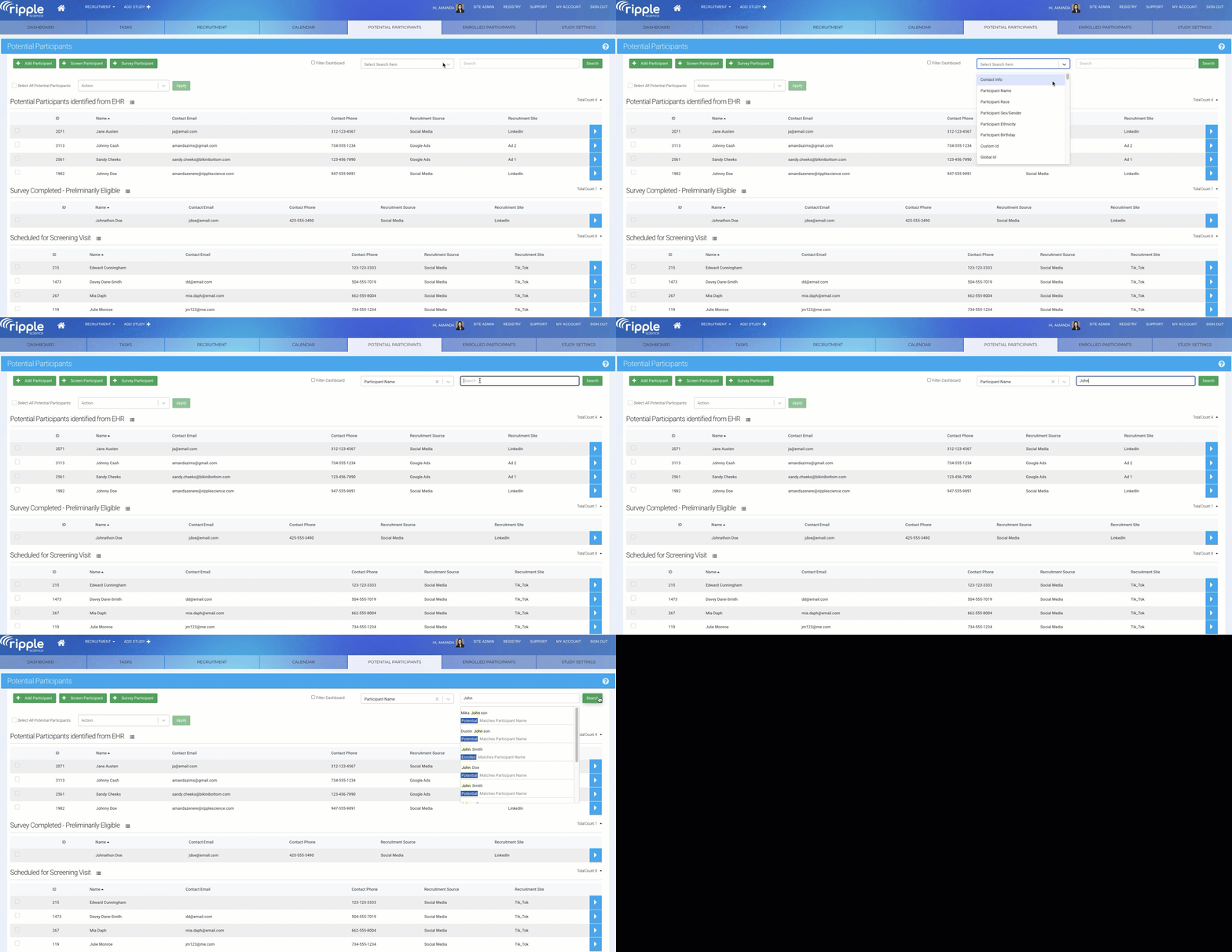
Selecting Participant Profile Card Information for Search or Filter
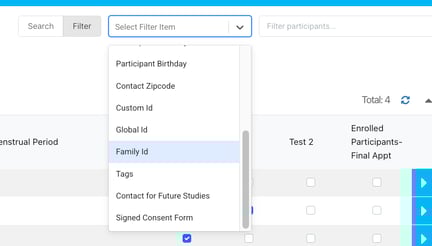
When using the Search Bar or Filter Dashboard, users can search or filter by the following details from a participant’s profile card:
: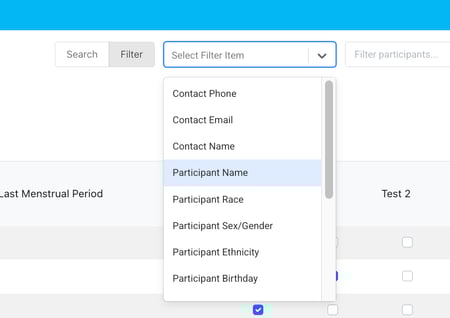
- Contact Phone
- Contact Email
- Contact Name
- Participant Name
- Participant Race
- Participant Sex/Gender
- Participant Ethnicity
- Participant Birthday
- Contact Zipcode
- Custom ID
- Global ID
- Family ID
- Tags: Assigned to Participants
- Contact for Future Studies: Whether participants are open to being contacted for future studies.
- Signed Consent Form: Status of signed consent.
- Custom Variables: Lists each custom variables created for this study.
- Date Custom Variables-enter date in mm/dd/yyyy or dd/mm/yyyy depending on the locale set for your study when searching or filtering.
This flexibility allows users to search or filter participants based on various personal, study-related, or consent-specific details.